Autofitting text
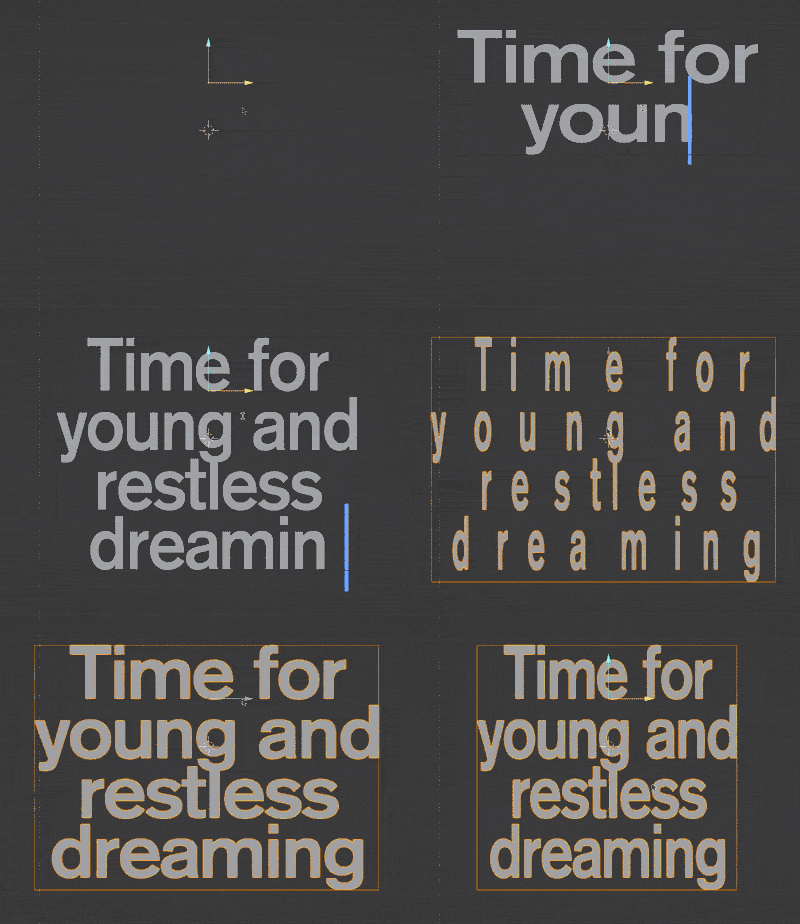
Thanks to pjfrix for the tip!
There are two parts to this node setup.
Fine tuning spacing
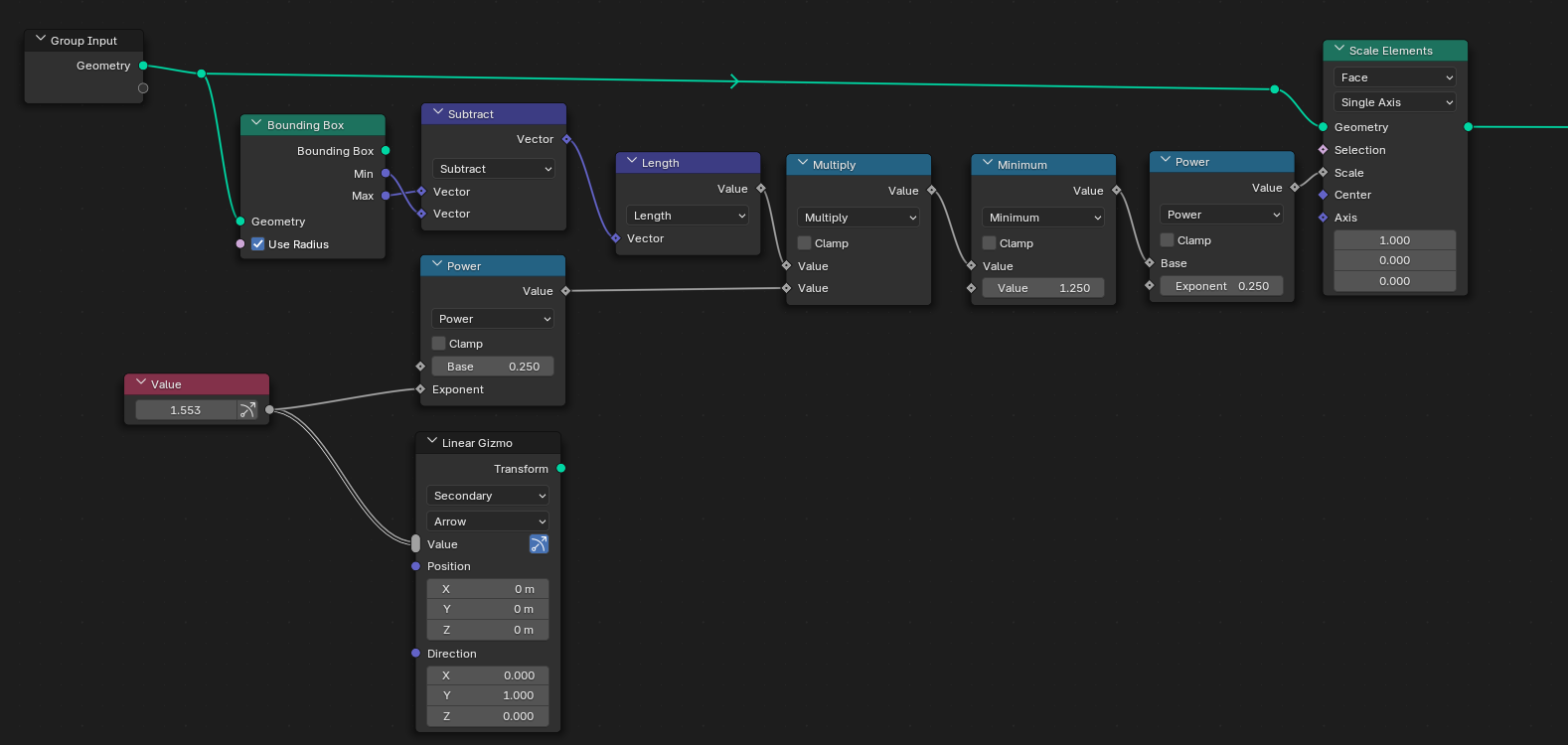
This first part scales down the individual characters, changing their effective spacing.
The gizmo being set up here points in the local Y axis.
Autoscale text
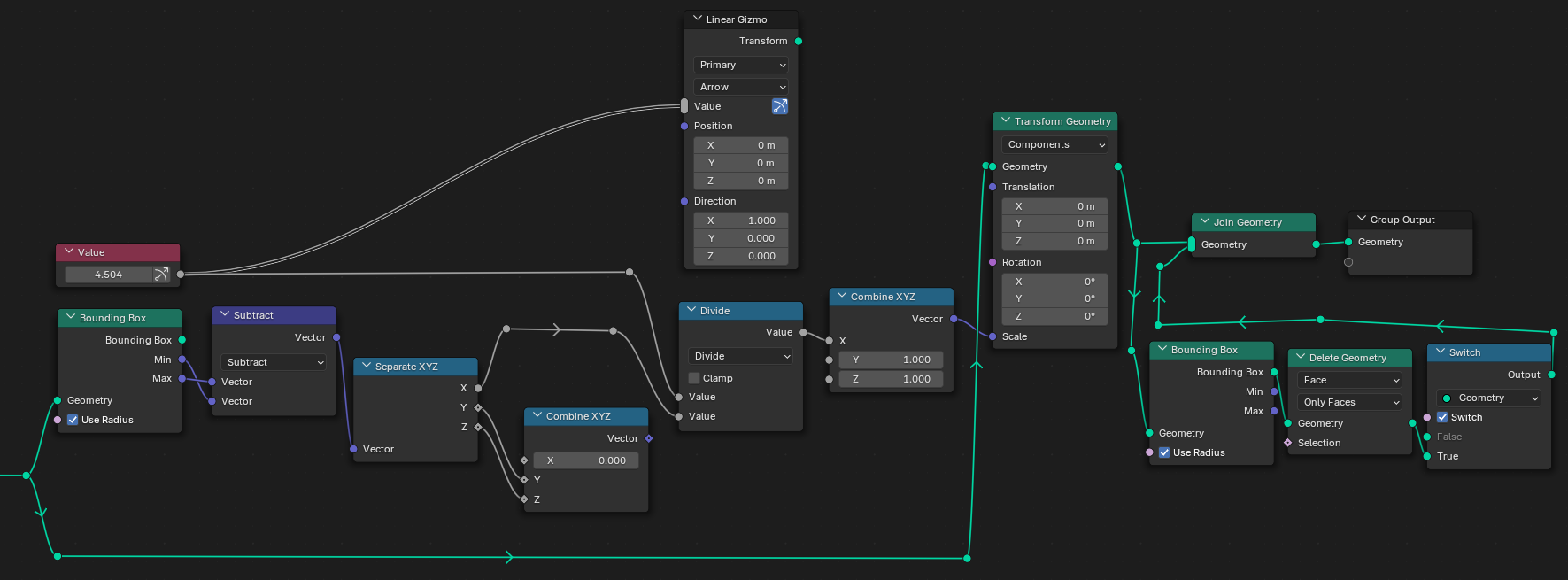
This second part actually performs the scaling. It essentially takes the text's bounding box, replaces the X range with one of our choosing (which can be controlled with a gizmo), and then stretches/squishes the text geometry so that it fits with our custom bounding box.
What the resulting geometry is joined with is its own bounding box, so we can see it in the viewport. The Switch node lets us enable or disable it.
The gizmo being set up here points in the local X axis.